 Get the app
 How to Delete Text from a PDF
Short answer
To delete text from a PDF, use an editor that removes original text objects, select the passage, delete it and verify the saved copy. PDFMason for Android does this locally and is free during early access. The browser tools do not delete text. Covering words is not secure redaction.
Before you start
Start by working out which kind of PDF you have, because it decides everything that follows. A native PDF carries a text layer: its words are stored as text objects with font and position data, and an editor can delete them. A scanned PDF is a picture of text — pixels, not characters — and no tool can delete what is only an image. The same distinction governs every edit of this kind; the mechanics are explained in the guide to editing existing text in a PDF.
The test takes ten seconds. Open the PDF in any reader and try to select a word — long-press it on a phone, drag across it on a desktop. Then search for a word you can see on the page.
- If the word highlights and search finds it, the page has a text layer and deletion is possible.
- If nothing selects and the search comes back empty, the page is a scan. Deletion tools find nothing to work on — the page needs OCR first, as described under If it doesn’t work below.
- If some pages pass and others fail, you have a mixed document, and each page needs its own treatment.
One more thing to know before you pick a tool. A line of text in a PDF is a list of positioned glyphs, not a sentence in a flowing document. Deleting four words means re-shaping the rest of the line and re-embedding a matching font subset into the file. That is typesetting work, and it is why the free browser tools on this site operate on whole pages — merge, split, rotate, number — and do not touch the words inside them.
Last check: make sure you may edit the document. Removing text from a contract, a statement or someone else’s report can have consequences no tool can reverse.
How to delete text from a PDF in PDFMason for Android
These steps describe PDFMason for Android, an on-device PDF editor. The app is in early access: every feature, text editing included, is free during this period. If you want to change wording rather than remove it, the companion guide covers how to replace text in a PDF.
Open the PDF
Open PDFMason and pick the file from your device through the system file picker. An encrypted document asks for its password, and the password is checked on the phone, not sent anywhere.
Check the diagnosis
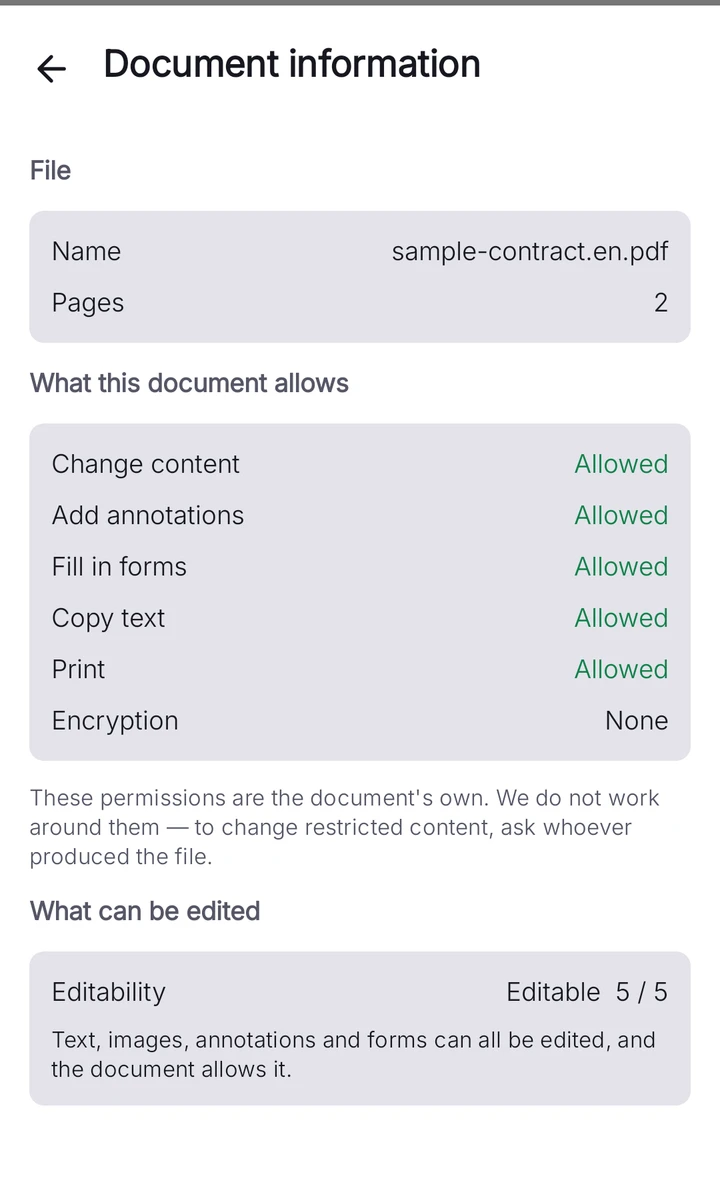
On opening, the app classifies every page — native text, scanned, mixed, vectorized text or empty — and shows a five-level editability verdict with one of nine documented reasons. A document marked editable has a text layer on the pages you need.
Long-press the passage
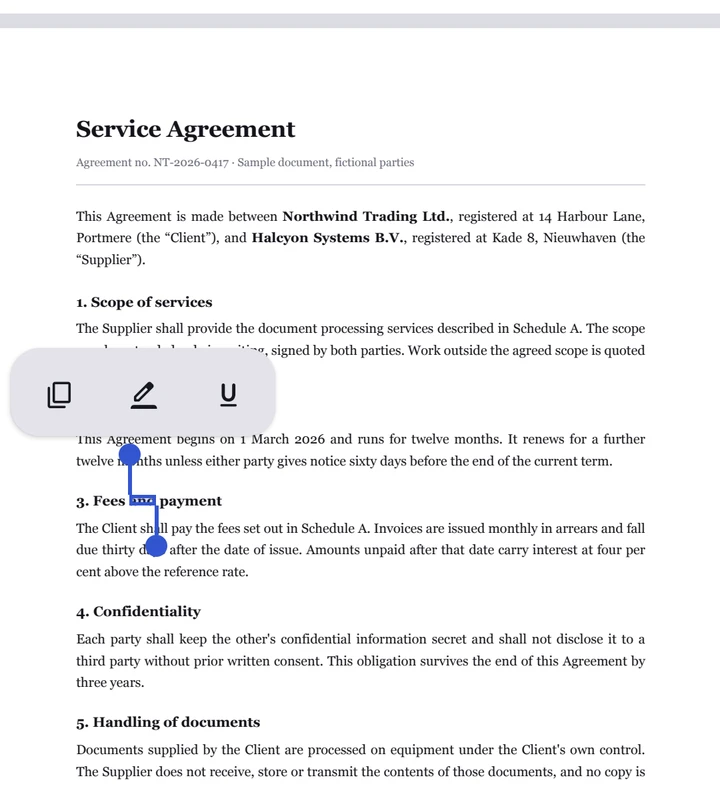
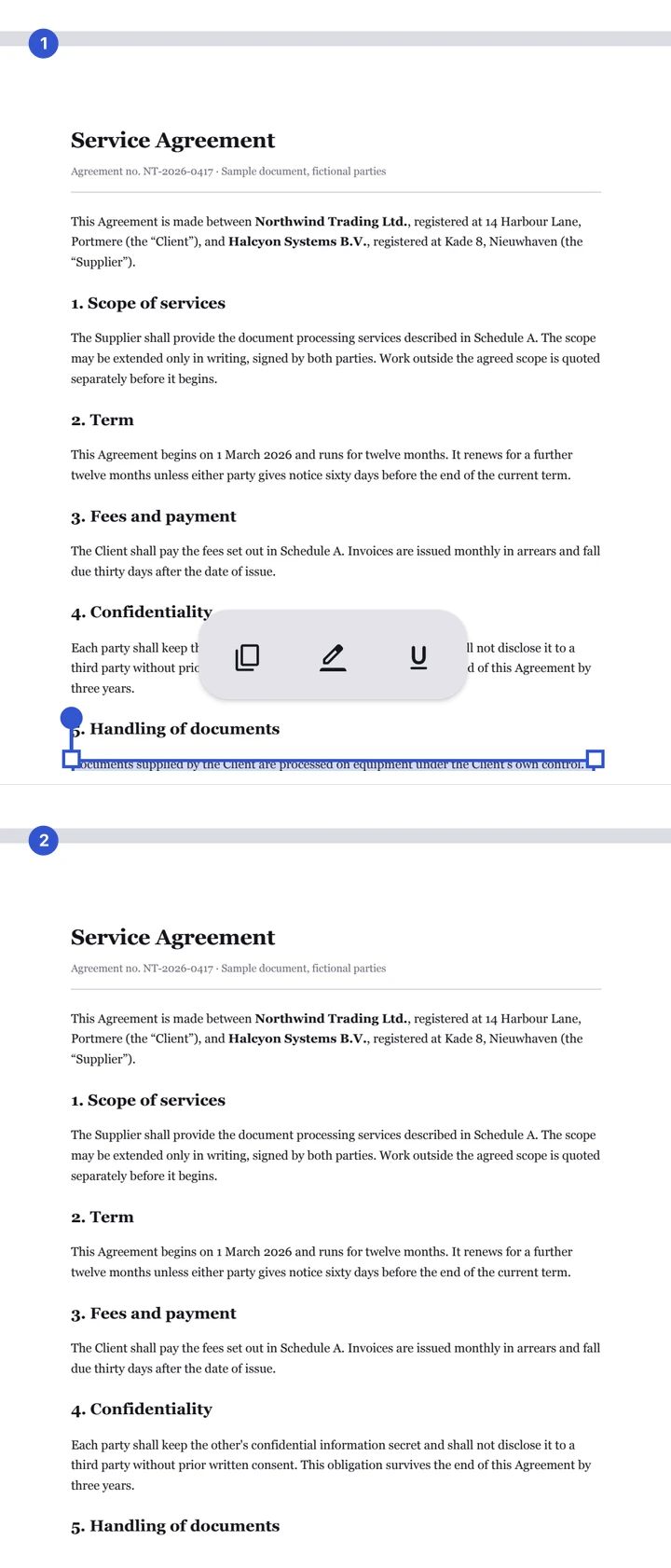
In reading mode, long-press the first word you want gone. Selection handles appear; drag them to stretch the selection character by character, or tap a handle to select the whole block. A toolbar offers Copy, Highlight and Edit.
Tap Edit, then delete
Edit mode opens with the keyboard, and the selected text appears in the edit bar above it. Delete the selection. The app removes the text objects, re-shapes the remaining line and re-embeds the font subset, so nothing is left behind but the space where the words were.
Undo anything you dislike
Deletions, like every edit in the app, go through the edit history. Undo and redo work across the whole sequence, and a draft survives the process being killed, so a mistake is recoverable.
Save
Save as a copy or overwrite the original. Every save runs a four-stage pipeline — pre-flight, write, verify, place — and if any stage fails, the original file is left untouched. A save report tells you what changed, page by page.
If it doesn’t work
When deletion fails, the cause is usually one of five things. Each has a specific way out.
The page is a scan
If the ten-second test from Before you start failed, the page has no text layer: the words are pixels, and no tool can delete pixels as text. The document has to go through OCR first, which recognizes the characters and writes a searchable layer that can then be edited. PDFMason for Android runs OCR on the device. The browser tools on this site do not do OCR at all — the site’s own words are: “No OCR, no compression, no PDF-to-Word in the browser — yet. We’d rather ship nothing than ship a version that doesn’t work.”
The app refuses to write the result
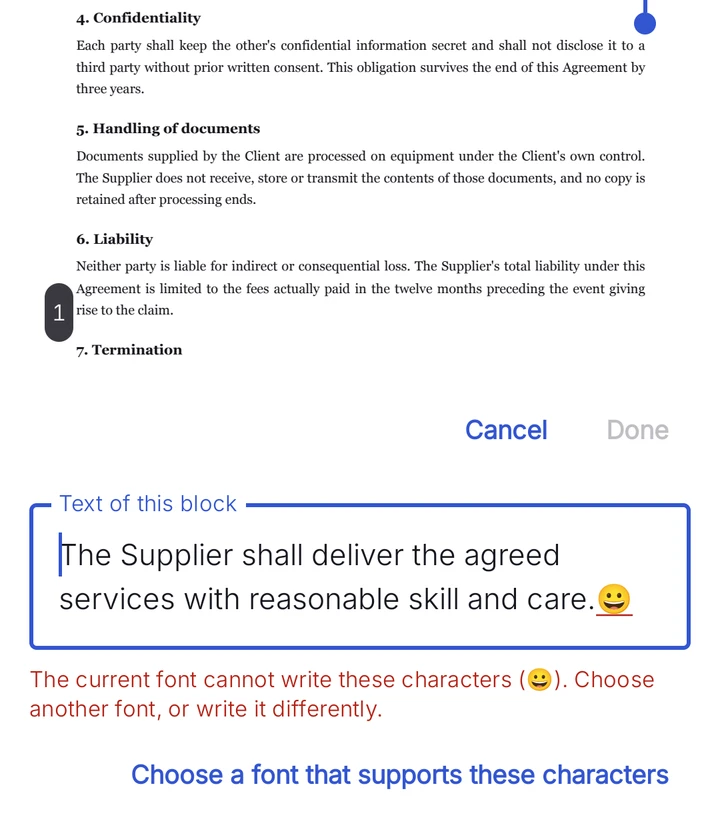
Deleting part of a line forces the app to re-typeset the rest with the document’s own font. If the embedded font subset lacks the glyphs needed, PDFMason refuses to write rather than produce a broken page: the offending characters are marked in red with a wavy underline, a font picker offers families that do cover them, and saving stays disabled until the conflict is resolved. It names the exact characters, so you are never left guessing.
The words are inside a form field
Text in a fillable form lives in a form field, not in the page’s text objects, so text deletion never touches it. Clear the field through the form tools instead: text fields, checkboxes and radio buttons can all be changed, and the values are written into the file so other readers see the emptied state. Non-Latin field values are embedded with a shaped font subset at save.
The document is read-only or encrypted
If the author locked the file against modification, PDFMason shows a read-only badge and does not bypass the restriction — by design. An encrypted file opens only with its password. Without the password there is no legitimate route, and the browser tools give up earlier in the chain: “The browser tools can’t open password-protected PDFs. The Android app can.”
The text is really vector outlines
Text that went through a convert-to-outlines or flatten step is stored as drawings, not characters. PDFMason’s diagnosis classifies such a page as overlay-only: you can cover the shapes or annotate over them, but there are no text objects to delete. The realistic options are rebuilding the page from its source or, where the goal is certified removal, a redaction workflow in a desktop tool.
Other ways to do this
If the app route does not suit you, these are the alternatives, stated with their trade-offs. Capabilities and pricing were checked on 2026-09-08; software changes, so re-check current product pages before you commit.
Adobe Acrobat Pro (paid, desktop)
Acrobat Pro’s Edit PDF tool changes and removes text in text-based PDFs, and its redaction workflow marks content for removal and then deletes it from the file, with an option to scrub hidden data as well. This is the established route when the deletion has to be defensible — legal, medical or financial documents. It is a subscription product.
LibreOffice Draw (free, open source)
Draw opens each page of a PDF as a canvas of separate objects, text included. Delete a text object, or double-click to edit it, then export the document back to PDF. The trade-off is fidelity: Draw re-exports the page, so dense or font-heavy layouts can come back looking different. Check the output page by page.
Print, cover and rescan
Print the page, cover the passage with an opaque marker, and scan or photograph it back into a PDF. It works on every document, including ones you only have on paper, and it needs no software. The cost is real: the result has no text layer, so it can no longer be searched, selected or read aloud by a screen reader, and the file grows.
A word about free online editors
Most browser-based editors that promise text removal actually place a white box or a text box on top of the words. The original characters are still in the file — selectable, searchable and extractable by anyone who looks. If the requirement is that the words are gone from the file, covering is not deleting — the difference, with verification checks you can run yourself, is set out in black boxes versus real redaction.
FAQ
Does PDFMason delete the text or just hide it?
Is deleting text free?
Can I delete text from a scanned PDF?
Are deleted words recoverable from the file afterwards?
Can I delete text from a PDF online without uploading it?
Where these trade-offs come from — why PDF stores text the way it does, and what it takes to edit it in place — is the subject of the PDFMason guide to editing existing text in a PDF.
PDFMason for Android is coming
The browser tools handle whole pages. The app edits the text inside them — on your device, with nothing uploaded.
- Edit the text and images already in the PDF
- Convert to Word, Excel and PowerPoint — no upload
- OCR, redact, fill and sign — everything on the phone

Scan to install Opens Google Play on your phone
