 Get the app
 PDFMason for Android
Change the text and images already in a PDF, convert to Word, Excel and PowerPoint, OCR scans and redact — on your Android phone, without uploading a thing.

Scan to install Opens Google Play on your phone
- Free download
- Android 8.0+
- No account
- Works offline

Real screens from Google Play


Everything the app does, in six cards
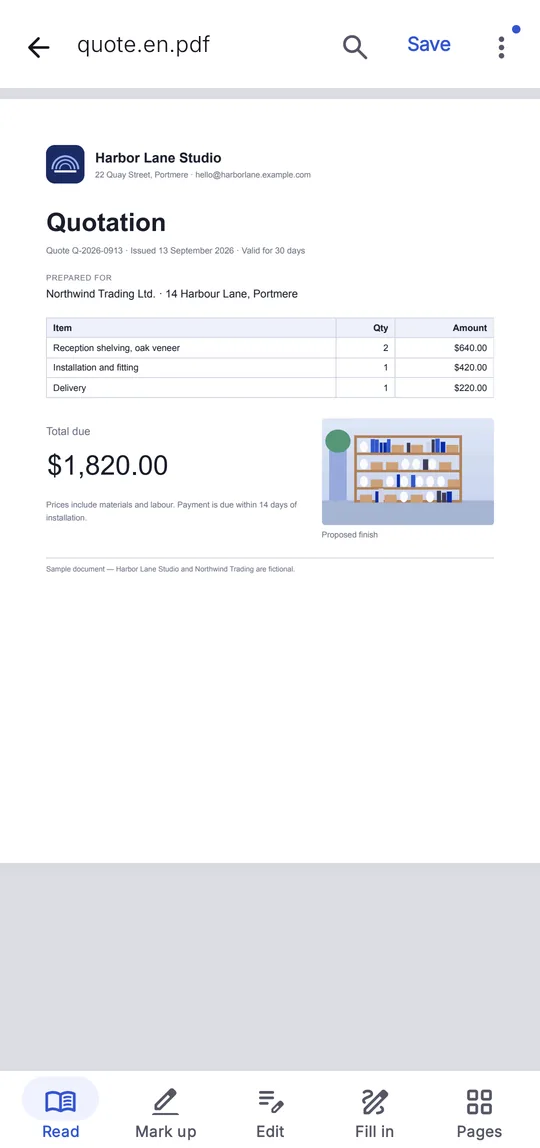
Edit text & images
Change the words and pictures already in the PDF — the font is re-embedded, so the result stays selectable.
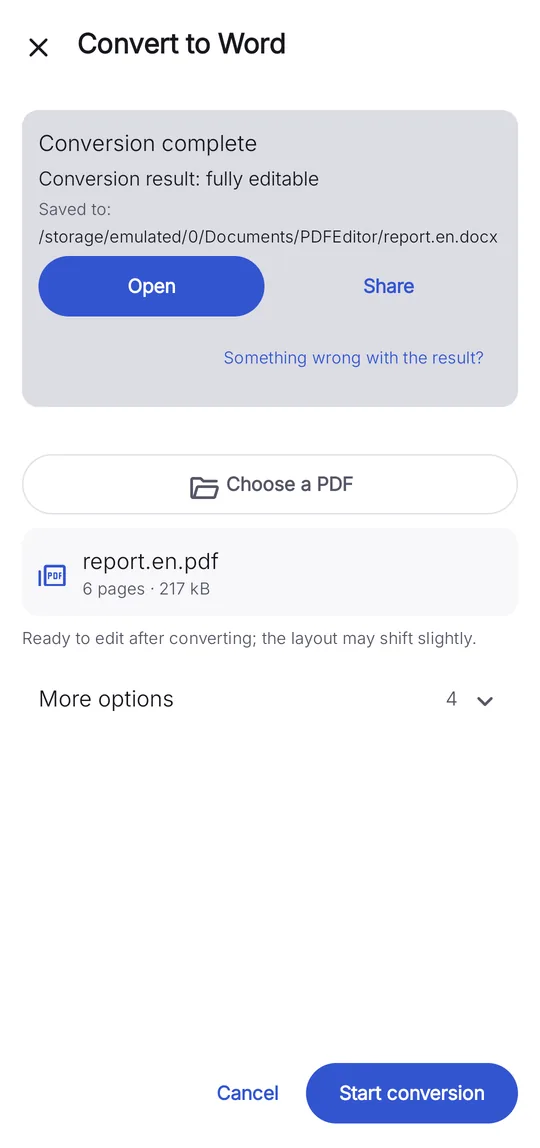
PDF to Office
Word, Excel and PowerPoint, converted on the phone — not on a server.
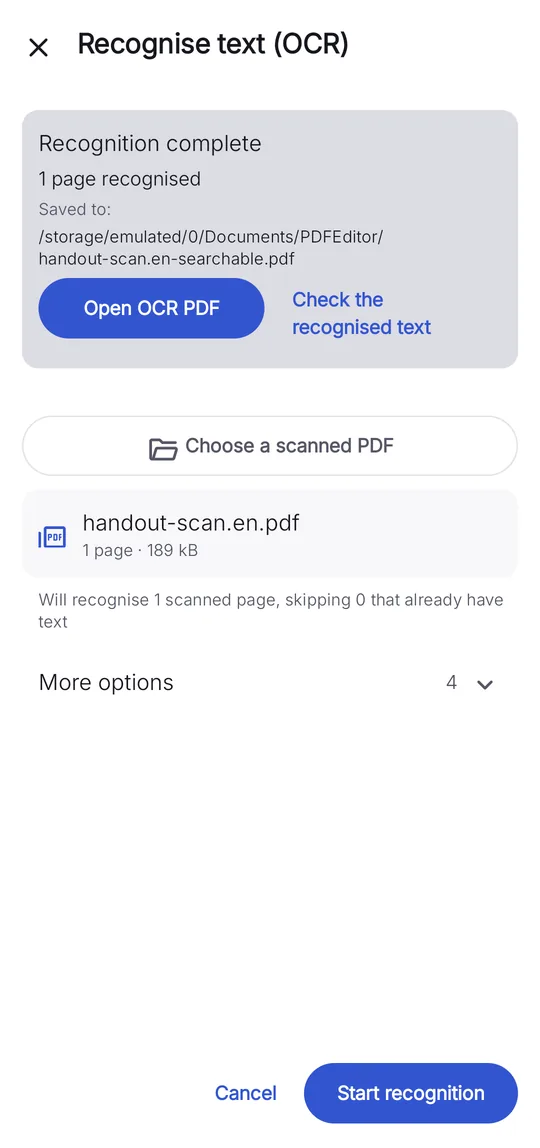
On-device OCR
Make scans searchable, then find and copy the text.
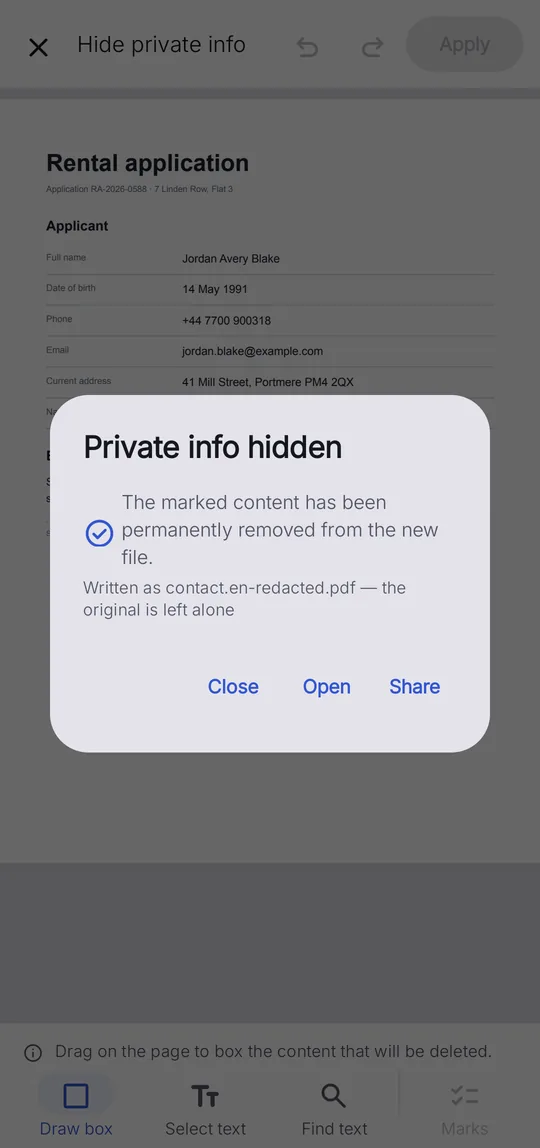
Hide private info
The content under the marks is removed, then checked — not just covered in black.
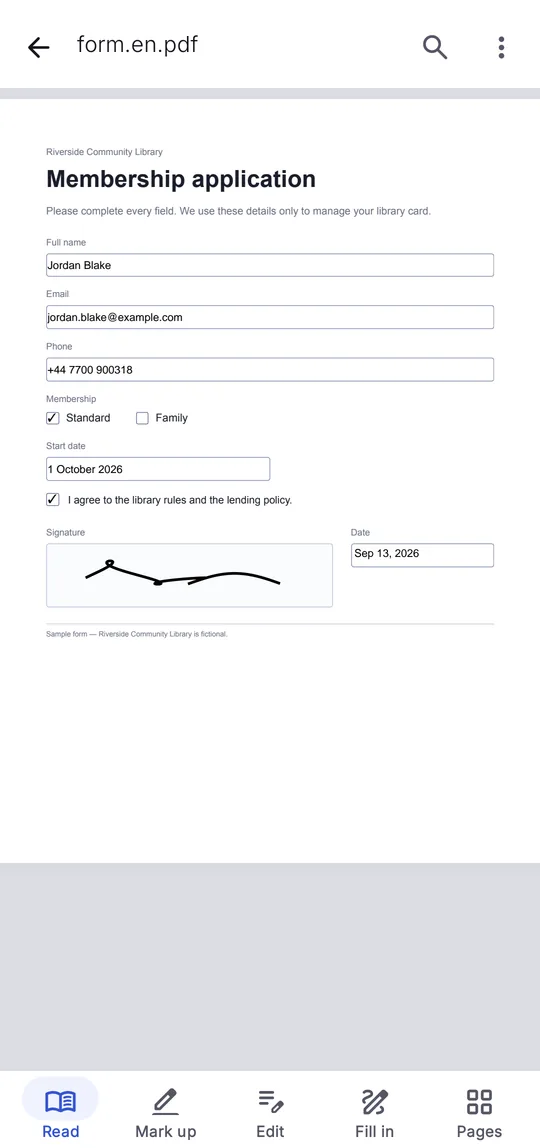
Fill & sign
Type into forms, tick boxes, add the date and sign by hand.
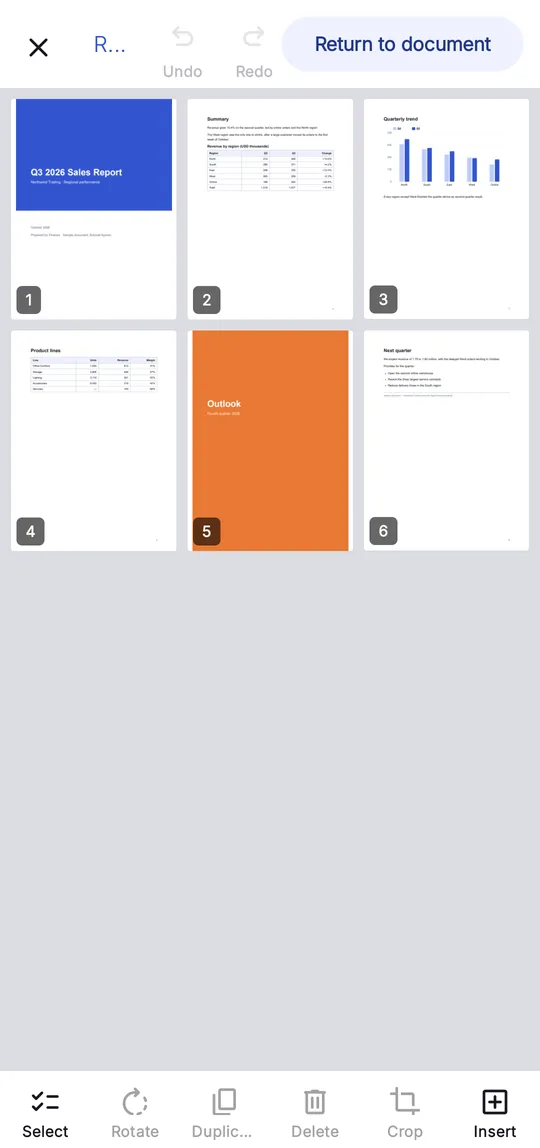
Organize & compress
Reorder pages, merge files and shrink the image-heavy ones.
Requirements
| Android | 8.0 or newer |
|---|---|
| Languages | 12 in the app |
| Internet | Not needed after install |
| Account | None |
| Size | Listed on Google Play |
02Privacy by design
Your files stay on your phone.
Editing, OCR, conversion, redaction and compression all run on the device. There is no PDFMason server to send them to.
Questions
iPhone version
PDFMason is Android-only today. Leave your email and we will tell you once, when the iPhone version ships — nothing else, ever.
One email when the iPhone version ships. Nothing else, ever.