 Get the app
 How to Replace Text in a PDF
Short answer
You can replace text in a PDF when the file has a text layer: select the passage in an editor that rewrites text objects, type the replacement, and save. Keeping the same font depends on whether that font contains the replacement characters. PDFMason’s browser tools do not replace text; PDFMason for Android does, on the device, reshaping the line and re-embedding the font so the result stays selectable. The app is on Google Play and in early access — every feature is free during this period.
Before you start
Replacing a word inside a PDF means editing the text objects themselves, so the first question is the same as for any text edit: does the file have a text layer? A native PDF stores words as positioned glyphs with font data, and an editor can rewrite them in place. A scanned PDF is a picture of text — there is nothing to replace until OCR has recognized the page. The background mechanics are explained in the guide to editing existing text in a PDF; if you are not sure which situation your file is in, why you can’t edit text in a PDF walks the one-minute diagnosis.
Run the ten-second test. Long-press a word on your phone, or drag across one on a desktop, then search for a word you can see on the page.
- If the word highlights and the search finds it, the page has a text layer and replacement is possible.
- If neither works, the page is a scan. It needs OCR first — see If it doesn’t work below.
- If some pages pass and some fail, the document is mixed, and each page needs its own treatment.
Be precise about what most free tools do here. An overlay editor — including most browser-based PDF editors — places a new text box over the old words. The original text stays underneath: still in the file, still searchable, still copyable, now doubled by a second, overlapping text. Real replacement writes the new characters into the text objects and removes the old ones, so one text comes out where one went in.
One more difference from deletion: replacement introduces new characters, and characters need glyphs. A PDF’s embedded font is usually a subset, holding only the glyphs the document actually used. Whether your new wording can be typeset in the original font is decided per character, and a serious tool tells you when it cannot.
How to replace text in a PDF in PDFMason for Android
These steps describe PDFMason for Android, which replaces the original text on the device. The app is on Google Play and in early access: every feature, text editing included, is free during this period. The browser tools do not perform these steps.
Open the PDF
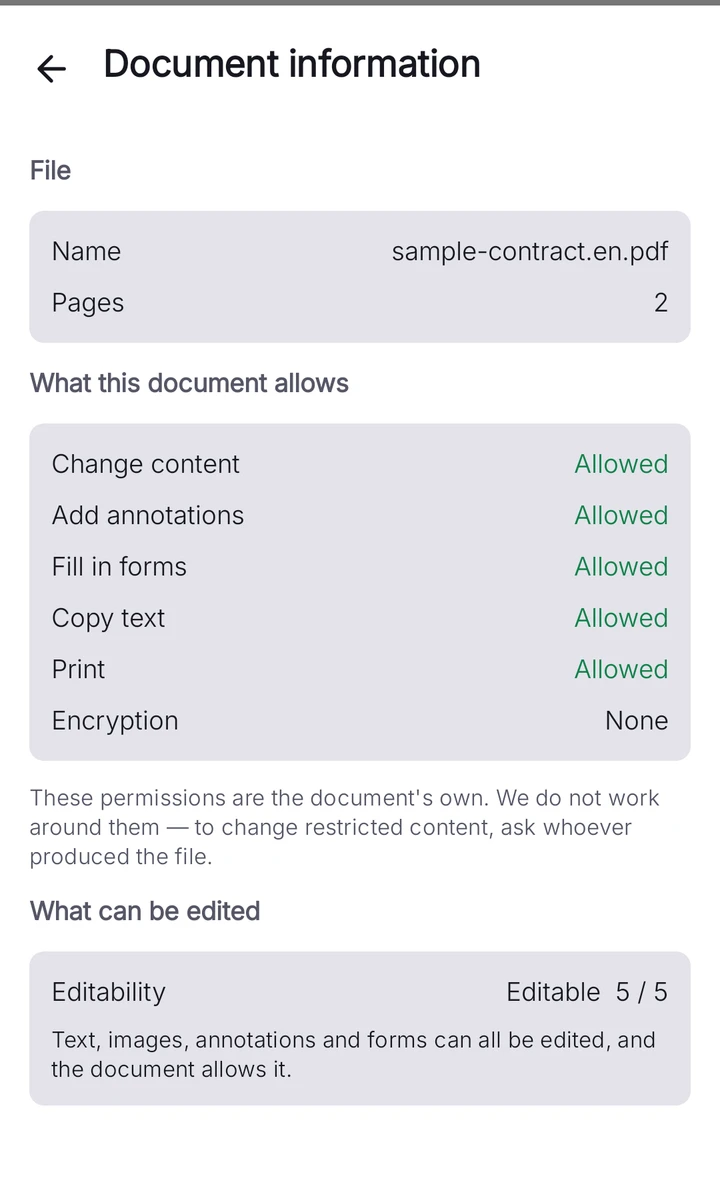
Pick the file from your device in PDFMason. The diagnosis screen classifies each page — native text, scanned, mixed, vectorized or empty — and states a five-level editability verdict before you touch anything.
Select the fragment
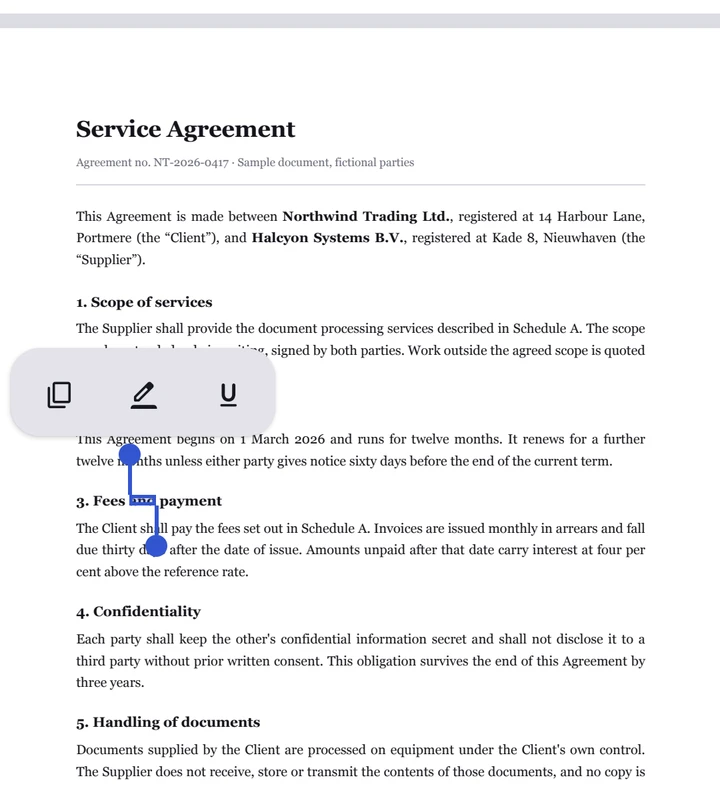
Long-press the first word of the passage, then drag the handles until the selection covers exactly what you want gone — it works at character level. Tap a handle to widen the selection to the whole block.
Tap Edit and type the replacement
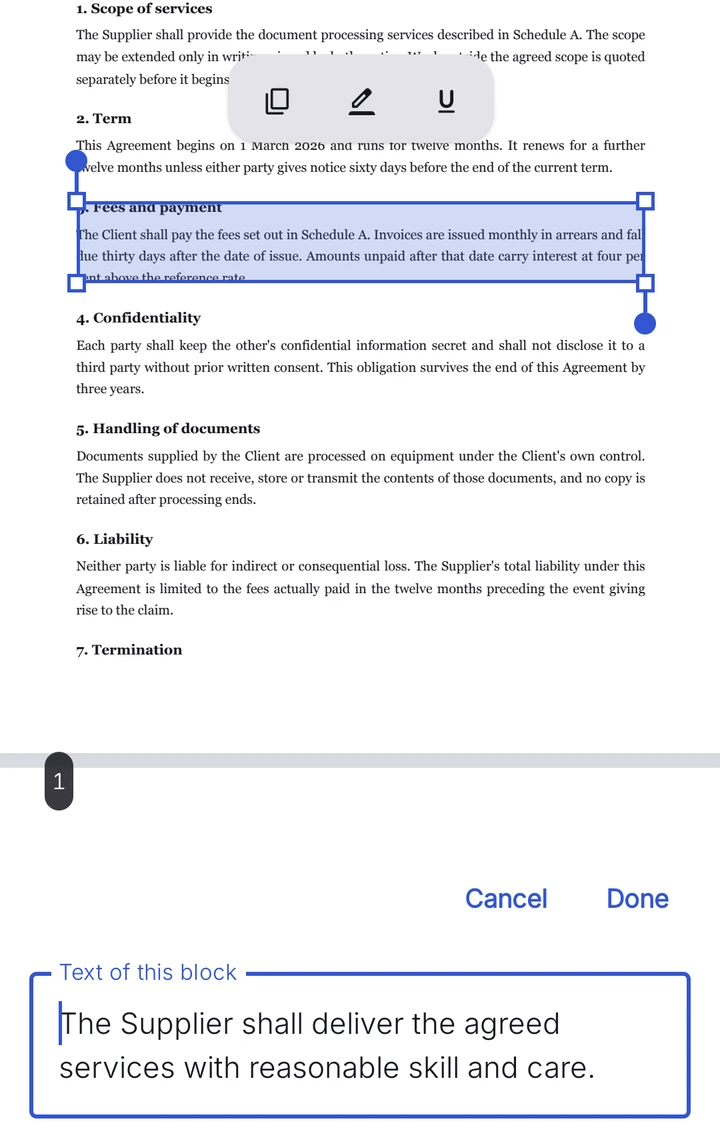
The selected text appears in the edit bar above the keyboard. Type over it. The app replaces the fragment inside the text objects, re-shapes the line and re-embeds the font subset, so the result stays selectable and searchable.
Resolve overflow, three ways
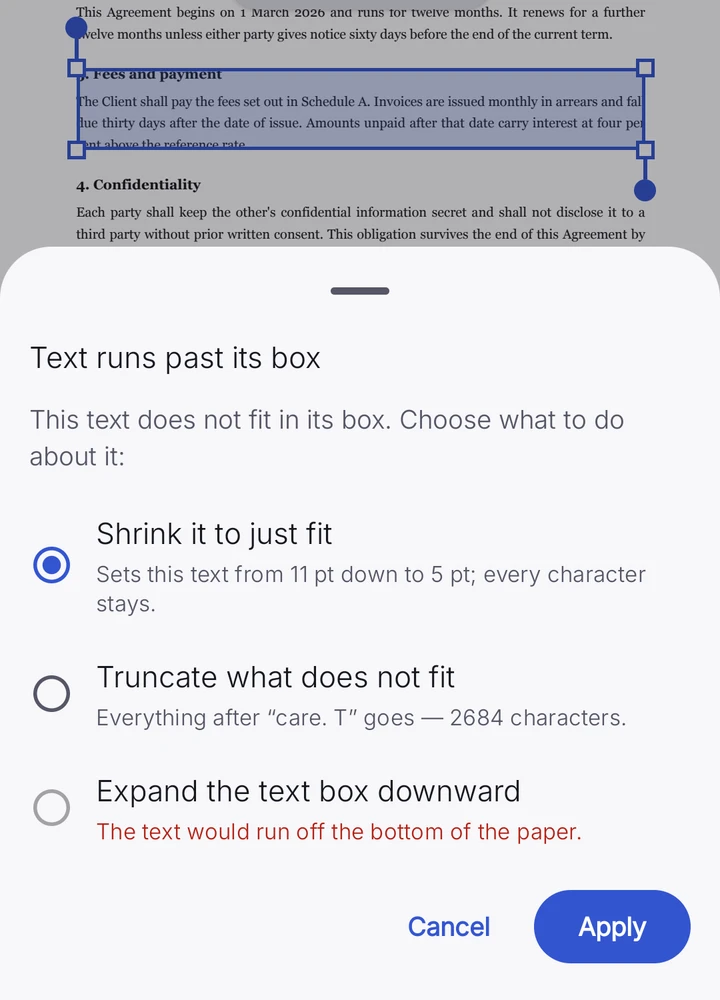
If the new text does not fit its frame, the app asks once, with three options: shrink to exactly fit — one tap, using the font size the engine calculated — truncate what overflows, or expand the frame downward if the page has room.
Adjust the style if needed
Font family, size and color are adjustable for the replacement, with bold, italic and underline where the document’s fonts provide them.
Save
Save as a copy or overwrite the original. The four-stage save pipeline verifies the file after writing, a failed save never touches your original, and the save report lists what changed.
How to replace PDF text with the same font
The same font is possible only when the original font is usable and contains the glyphs for every new character. Keep the font and size, try a short replacement, then save a copy and reopen it. Search for the new wording and copy the edited line to check that it is real text. A longer replacement may overflow even when its font is unchanged. These cases explain what to check.
The page is a scan
No text layer means nothing to replace. OCR comes first: it recognizes the characters and writes a searchable layer you can then edit. PDFMason for Android runs OCR on the device — the bundled recognition works even on phones without Google services. The browser tools on this site do not do OCR: “No OCR, no compression, no PDF-to-Word in the browser — yet. We’d rather ship nothing than ship a version that doesn’t work.” Pages whose text was converted to vector outlines look native but are not — the diagnosis flags them as overlay-only, because drawings are not characters.
The app names characters it cannot write
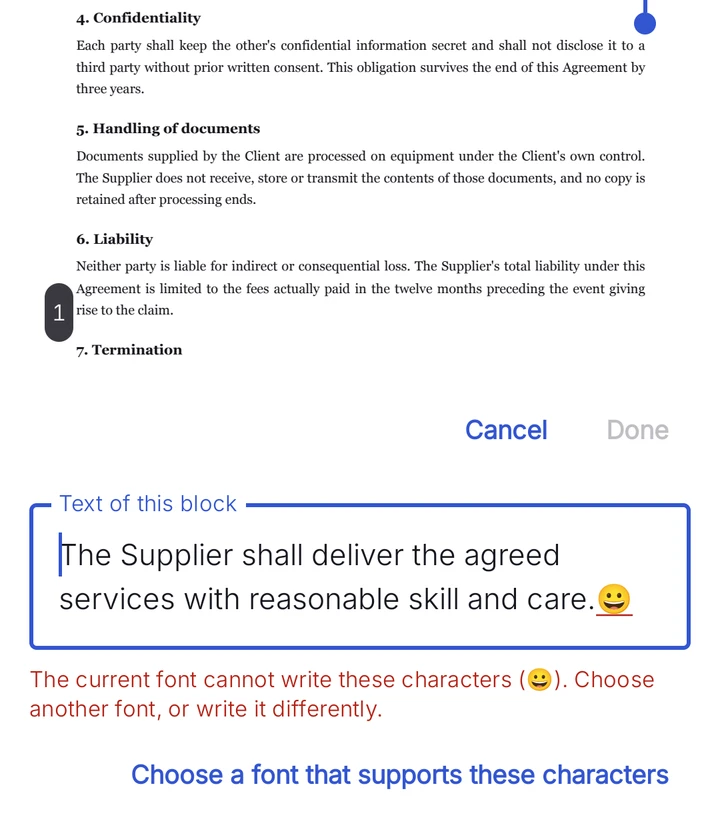
Your replacement is typeset in the document’s own font, and an embedded subset may not contain the glyphs you need — type a currency symbol a document never used, and there is no glyph for it. PDFMason refuses to guess: the unwritable characters turn red with a wavy underline in the edit bar, a font picker offers families that do cover them, and saving stays disabled until the conflict is resolved.
The replacement is longer than the original
Longer text needs room. The overflow dialog gives three outcomes — shrink to the calculated size, truncate, or grow the frame — and each does exactly what it says. Truncation cuts characters, so read the result before saving.
The words belong to a form field
Then it is a form-filling job, not a text edit: open the field and type over the value. Text fields, checkboxes and radio buttons can all be filled, and the values are written into the file so other readers see them. Non-Latin values are embedded with a shaped font subset at save, which is what lets Arabic, Hebrew, CJK and other scripts display correctly outside the app.
The file is read-only or encrypted
Permission flags that forbid modification are honored, not bypassed: the app marks the document read-only and disables editing. Encrypted files need their password at open. The browser tools stop earlier still — “The browser tools can’t open password-protected PDFs. The Android app can.”
Other ways to do this
If none of the routes above fits, here are the alternatives, stated plainly. Capabilities and pricing were checked on 2026-09-08; re-check current product pages before deciding. If your goal is removal rather than replacement, the companion guide covers how to delete text from a PDF.
Adobe Acrobat Pro (paid, desktop)
Acrobat Pro’s Edit PDF tool edits and replaces text in text-based PDFs, and it is the standard commercial answer for this job. It is a subscription product, and the edit tools live in the desktop application.
LibreOffice Draw (free, open source)
Draw opens a PDF as editable drawing objects, page by page; double-click a text object to rewrite it and export back to PDF. Fidelity is the trade-off — re-exported pages with complex layouts or unusual fonts can come back changed, so verify the result.
Rebuild the page
For a one-page document — a quote, a cover letter, an invoice header — copying the text into a word processor, fixing it there and exporting a fresh PDF is often faster than surgical editing. You lose the original file’s exact layout and any signatures on it, so this suits documents you author, not documents you received.
Overlay editors: know what they do
An overlay-only editor does not replace the original text. It draws a box over the old words and puts new text in the box. Two texts now overlap in the file, and the old one remains searchable and extractable. For a visual fix that is acceptable; for a real replacement it is not.
FAQ
Does the replacement keep the original font?
Can I replace text in a PDF online for free?
Can I find and replace across the whole document?
Is the replaced text still searchable?
Does replacing work on scanned PDFs?
How much does text replacement cost?
The side-by-side contrast of overlay editing against true replacement — what each leaves behind in the file — is set out in the PDFMason guide to editing existing text in a PDF.
PDFMason for Android is coming
The browser tools handle whole pages. The app edits the text inside them — on your device, with nothing uploaded.
- Edit the text and images already in the PDF
- Convert to Word, Excel and PowerPoint — no upload
- OCR, redact, fill and sign — everything on the phone

Scan to install Opens Google Play on your phone
