 Get the app
 Edit PDF Text on Android
PDFMason changes the text that is already inside a PDF — the original characters, not a box pasted over them. Below: the steps on an Android phone, a five-level answer to when rewriting works, and why some characters cannot be written back. Text editing is part of the Android app, and every feature of the app is free during early access.
Step by step
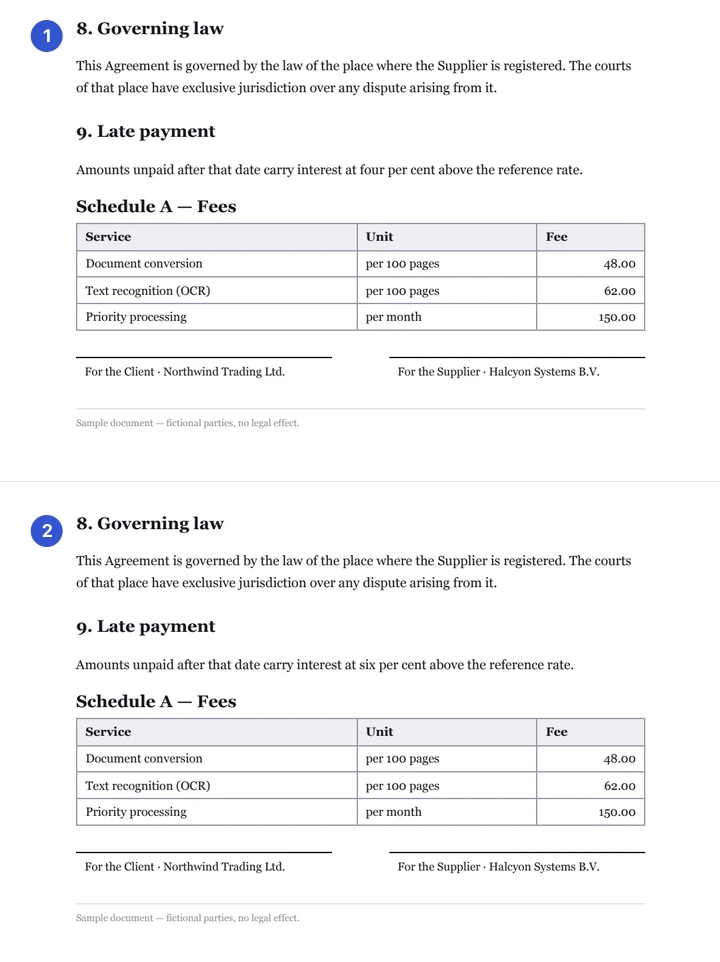
These steps are the current build running on a phone. Every screenshot below is a real capture from the same handset, over the same sample contract, with the app in the language of this page.
Open the PDF
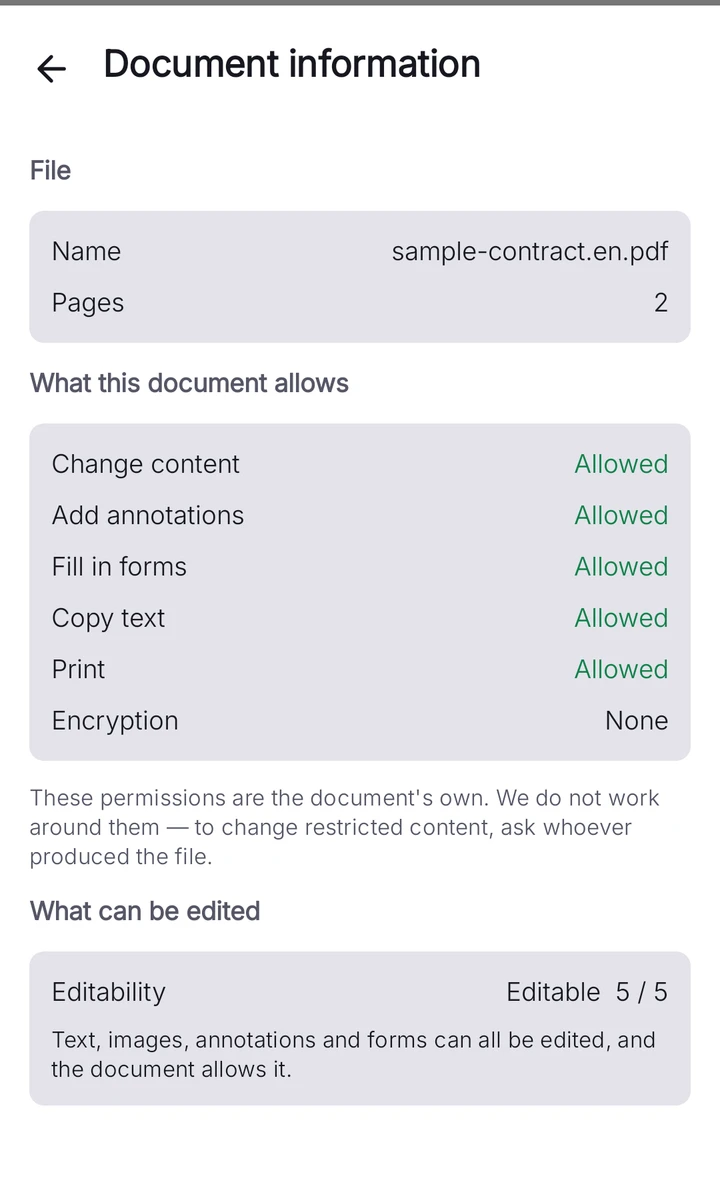
Pick the file in the system picker. While it opens, PDFMason diagnoses the document: page types (native text, scanned, mixed, vectorized, empty), hidden OCR layers, and a five-tier editability grade with a specific reason. You know what you are dealing with before the first edit.
Select the text
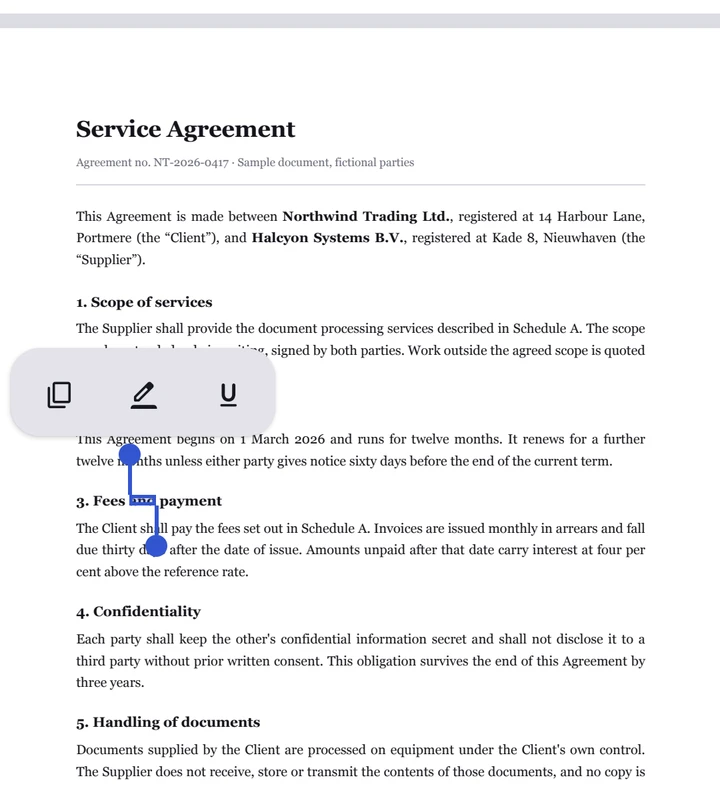
Tap a block to select it whole. Long-press a word for a character-level selection, then drag the handles to extend it — across style changes if needed. The selection can be copied to the clipboard.
Type the replacement
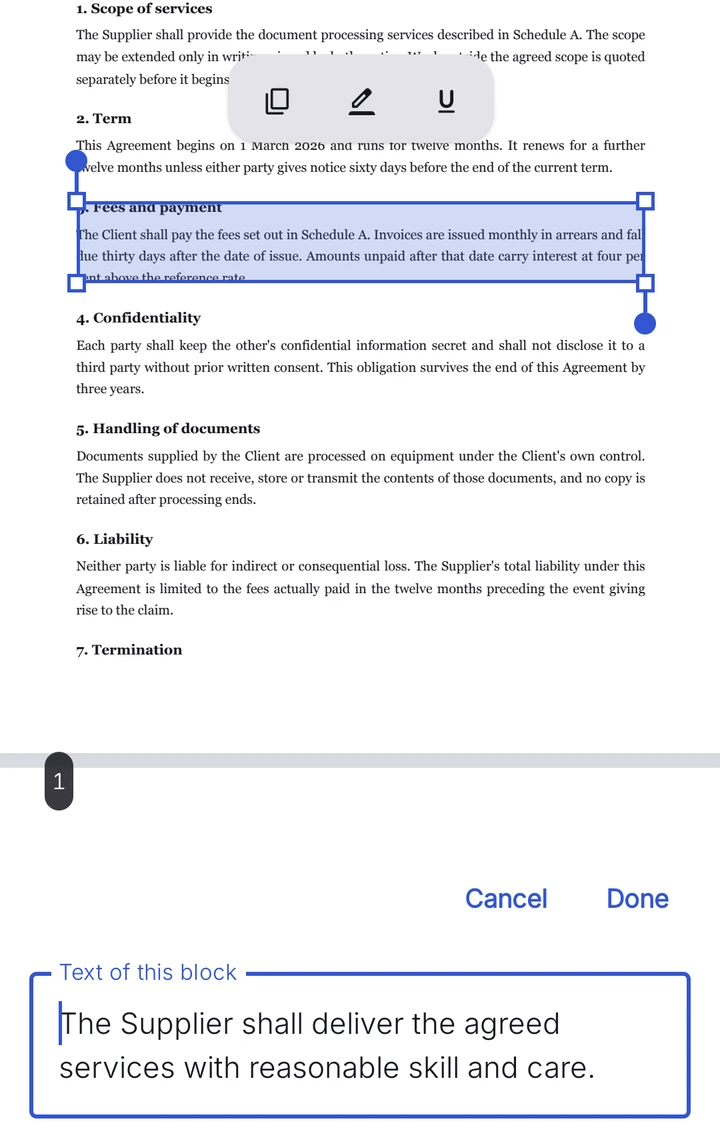
The editor removes the original glyphs, shapes the new run, and writes it back with a re-embedded font subset. Font family, size and color are adjustable for the edited run. The paragraph stays one real text object, not two overlapping ones.
Resolve overflow
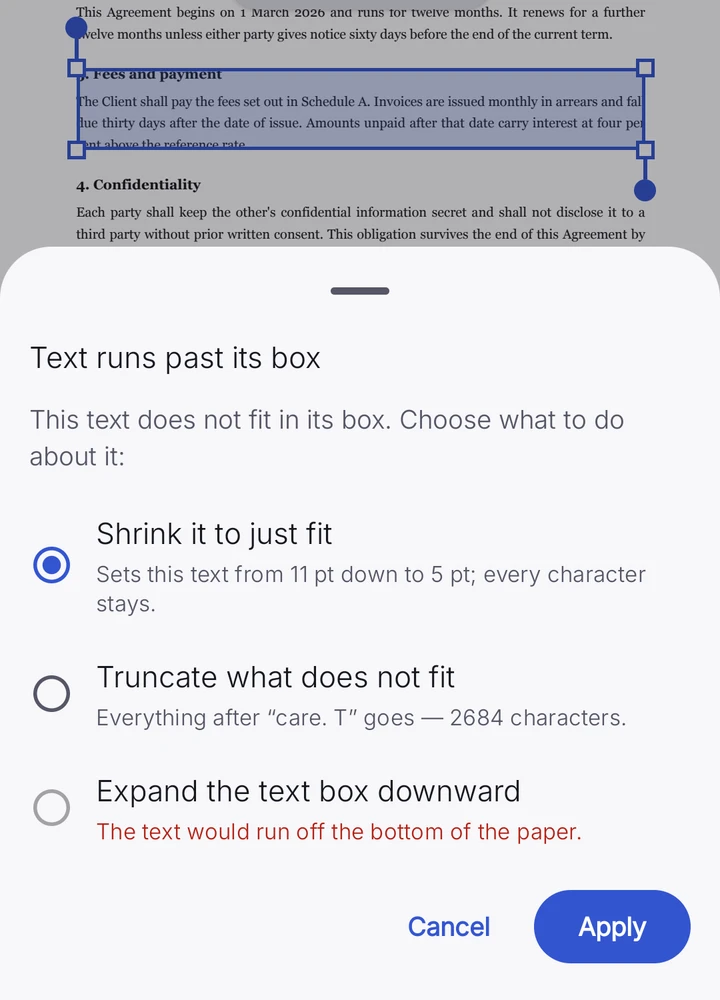
If the replacement does not fit the frame, choose one of three outcomes: shrink the font to a suggested scale that fits exactly, truncate the text, or expand the frame.
Handle a refusal, if one comes
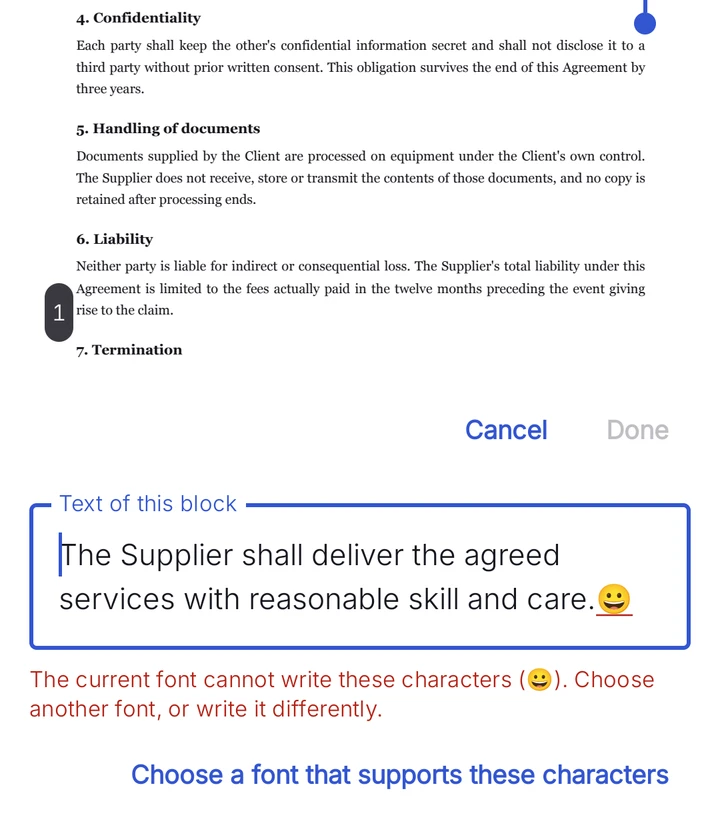
If the embedded font cannot draw a character you typed, the edit is refused before you invest work, and the offending characters are named and flagged. Switch to a replacement font from the picker and the same edit writes cleanly.
Save and check the report
Save as a copy or in place. The app verifies the file after writing and shows what changed. Undo history and a crash-safe draft back the whole session.
What you do not get: a new text box stacked over the old line, two searchable copies of the same sentence, or a rasterized picture of your paragraph. The underlying mechanics — glyph arrays, font subsetting, why most editors skip this — are explained in Edit existing text in a PDF.
When it works and when it doesn't
PDFMason grades every document into one of five editability levels when it opens. The grade is shown, not guessed, and each level means something different for your edit:
| Feature | Level | What the document is | What you can do |
|---|---|---|---|
| Directly editable | Best case | Real text objects — a Word export, a web printout, most office PDFs | Edit in place: replace, insert, delete, restyle |
| Partially editable | Mixed | Some pages carry real text; others are scans or vectorized outlines | Edit the text pages; run OCR on the scanned ones |
| Needs OCR | Scanned | Image pages — the letters are pixels, not characters | Run OCR first, then edit the recognized text |
| Overlay only | Vectorized text | Outlines that look like type but carry no text layer | No in-place rewrite in v1; annotate on top instead |
| Forbidden | Locked by permissions | The file itself disallows modification | Nothing — the app does not bypass permissions |
Two honest notes. Overlay-only documents are labeled rather than faked: v1 has no overlay editing mode that paints new text over the outlines, so the app shows the label instead of pretending. And even a directly editable document can refuse individual characters — that is a font coverage problem, covered in the next section.
Known limitations, stated plainly
The product-wide limitation list, in the same words used everywhere on this site:
Password-protected files, browser versus app: “The browser tools can't open password-protected PDFs. The Android app can.”
The browser side is deliberately smaller than the app: “No OCR, no compression, no PDF-to-Word in the browser — yet. We'd rather ship nothing than ship a version that doesn't work.”
Line and arrow annotation shapes were tested on real documents and cut: “We tested it on real documents: it only writes correctly to 33% of them. So it's not in v1.”
Saving very large documents: “A 1,136-page document takes 24–32 seconds to save with verification. It runs in the background and you can cancel it.”
Compare works on the text layer, not the pixels: “Images, formatting-only changes and paragraphs that merely moved are not compared — two files that look different but read the same may show no differences.”
Find and replace refuses what it cannot fit: “A replacement that would overflow its frame is flagged and left unchanged rather than silently shrunk — you decide per match, and scanned or low-confidence pages are listed as out of reach instead of edited blindly.”
Camera scanning depends on the device: “Camera scanning uses Google’s document scanner, so it appears only on devices with Google Play services, a camera and enough free memory; everywhere else the entry is hidden and photos can be imported instead.”
Repair is best-effort by design: “Repair rebuilds damaged pages but drops interactive forms, annotations, links, bookmarks, signatures and attachments, and cannot promise that missing content comes back.”
Specific to text editing: Indic scripts and vertical text are refused rather than written incorrectly, and an edit changes the paragraph you touched, not the pagination of the whole file. Making the same change over and over across a document is a different job — find and replace reviews every match with you and saves the result as a new copy.
Fonts and why text sometimes can't be written
A PDF does not store the letter A. It stores a glyph ID drawn from an embedded font program. To keep files small, producers usually embed a subset: only the glyphs the document actually uses. If a page says “Quarterly review”, the embedded font may contain Q, u, a, r, t, e, l, y and the space — and nothing else. Type “Zebra” into that line and there is no Z in the font to draw it with.
That is why text sometimes cannot be written back, and it is the failure mode most editors hide: they draw a black box, substitute a wrong glyph, or silently drop the character. PDFMason does the opposite. Font coverage is checked before the edit is applied; when it fails, the edit is refused and the app names the exact characters it cannot write, flags them with a red wavy underline, and disables saving until the conflict is resolved. A font picker offers replacements, and the font you switch to is subset and embedded on write-back, so the file stays self-contained.
Shaping — turning characters into positioned glyphs — is handled for Latin, CJK, Arabic and Hebrew scripts. Two honest edges: Indic scripts and vertical text are not supported in v1, and there is a known defect in fallback font selection where a purely Latin run can be won by a CJK fallback font. Scanned pages have no text at all until OCR runs; after that, OCR quality, not the editor, sets the ceiling on how correct the recognized text is.
| Feature | What you see | Why | What to do |
|---|---|---|---|
| Characters flagged red with a wavy underline | Edit refused, exact characters named | The embedded font subset lacks those glyphs | Pick a replacement font; the edit writes with the new font embedded |
| Grade says Needs OCR | No text objects on the page | The page is a scanned image | Run OCR first, then edit the recognized text |
| Grade says Overlay only | Type-looking outlines with no text layer | Text was vectorized when the PDF was produced | No in-place rewrite in v1 — annotate on top instead |
| Grade says Forbidden | Editing actions disabled | Owner-set permissions disallow changes | Not bypassed — edit a copy you are allowed to change |
FAQ
Can I edit PDF text on Android without a computer?
Is the edited text still selectable and searchable?
Why does the app refuse to type some characters?
Can it edit a scanned PDF?
Does it keep the original font?
How is this different from adding a text box?
PDFMason for Android is coming
The browser tools handle whole pages. The app edits the text inside them — on your device, with nothing uploaded.
- Edit the text and images already in the PDF
- Convert to Word, Excel and PowerPoint — no upload
- OCR, redact, fill and sign — everything on the phone
Scan to install Opens Google Play on your phone
